Lanta AI LogoLanta AI

Bald FilterSee yourself without the hair.

Wondering what you would look like bald? Upload your photo and use Lanta AI's bald filter to preview a shaved head. Explore the look with your beard, glasses or everyday style before reaching for the razor.

Create your bald preview

0/10
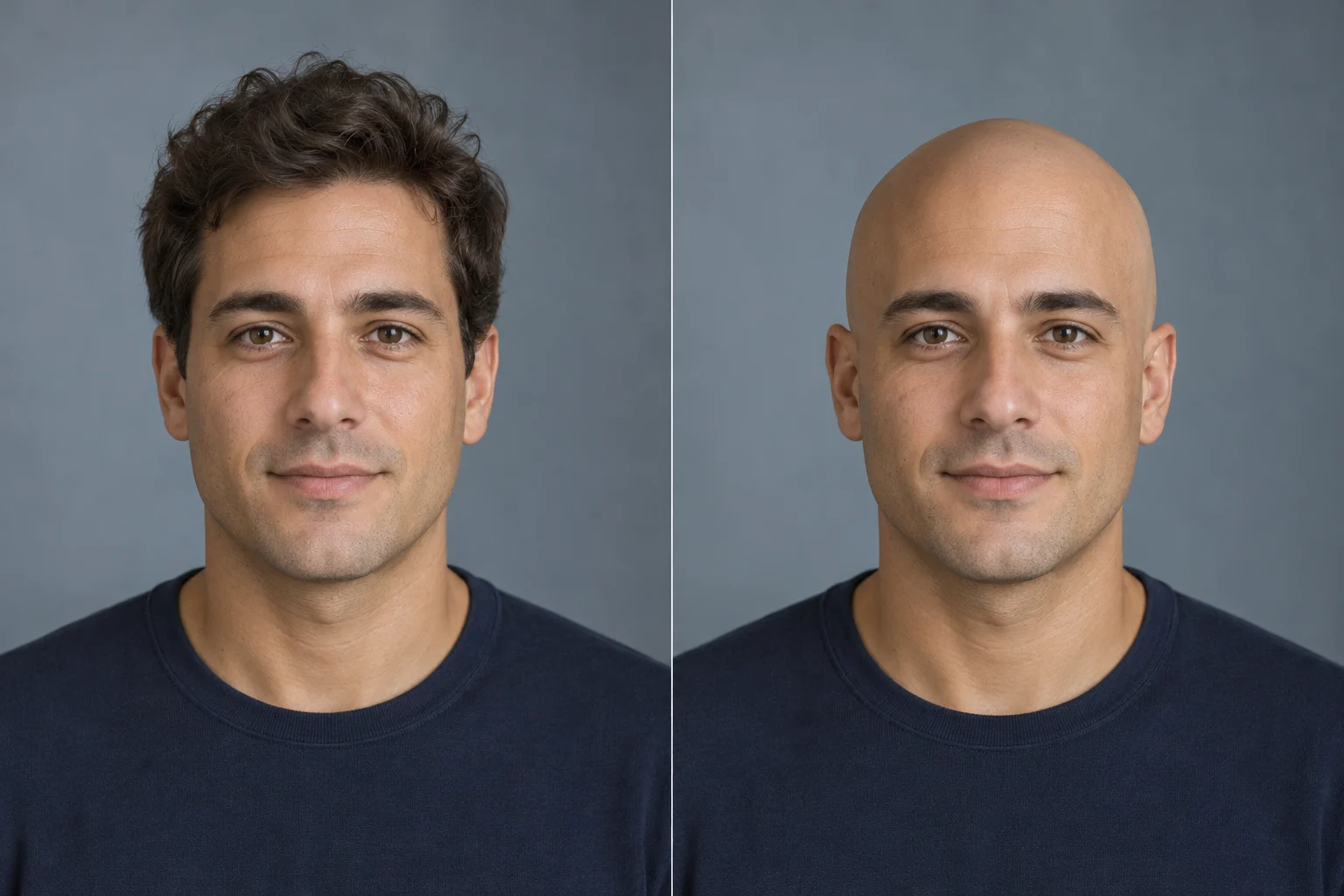
AI-generated concept pair: the same man with short brown hair on the left and a fully bald scalp on the right
Original lookBald concept

One change. A different frame for your face.

These AI illustrations explore three bald-head edits. Choose a prompt idea to try on your own photo; they are concepts, not measured Lanta tool results.

AI illustration: a clean-shaven man with short brown hair on the left and a bald scalp on the right, wearing the same navy shirt
Original lookBald concept

From short hair to a clean scalp

A smooth scalp changes the outline above your forehead. Use the same portrait to compare your brow, ears and head shape without a different pose distracting you.

Prompt idea

Make the person in this photo fully bald. Remove all scalp hair and visible stubble, with a natural skin texture and lighting that matches the face.
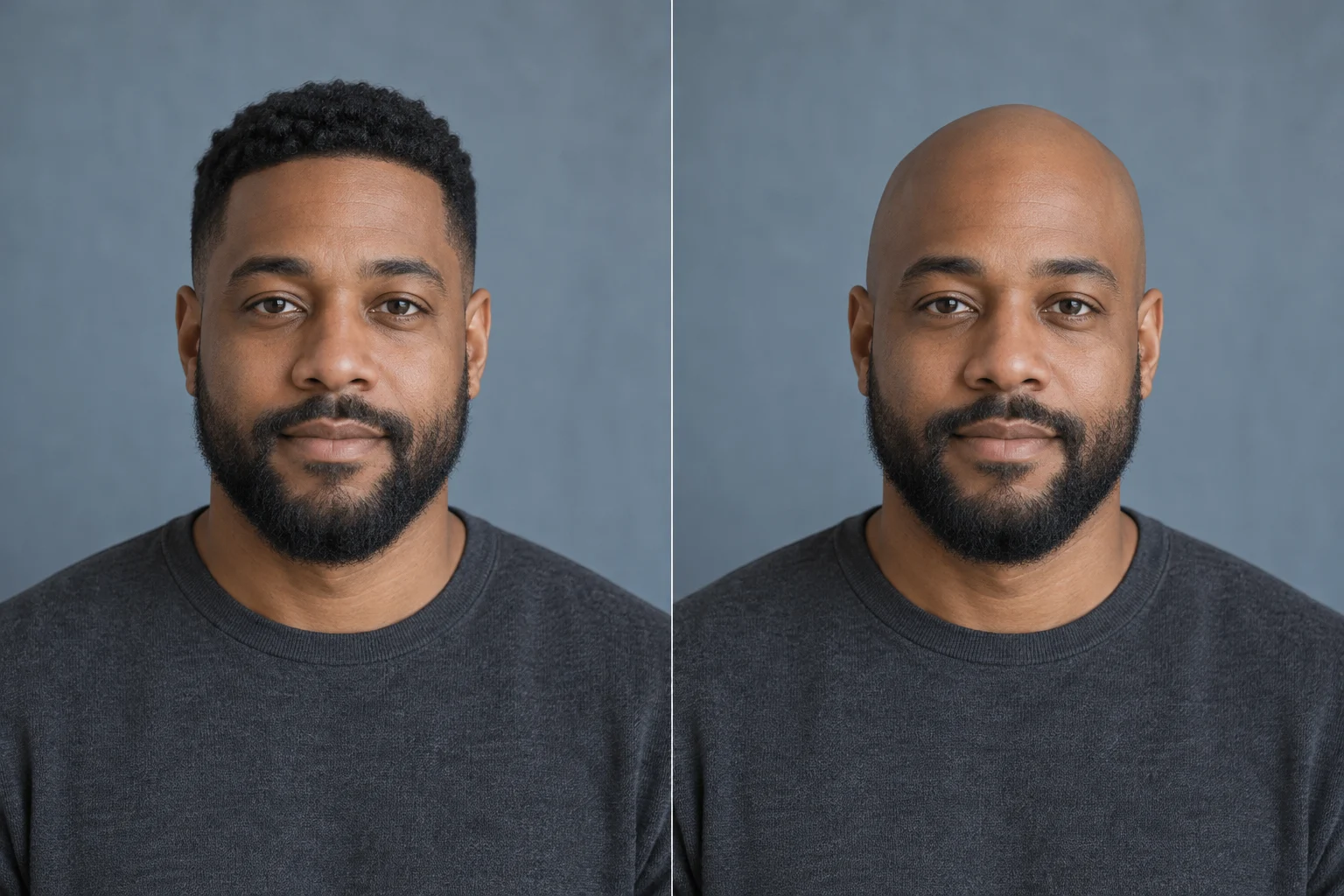
AI illustration: a bearded man with short textured hair on the left and a bald-head concept retaining his full beard on the right
Original lookBald concept

Try a bald head with your beard

Keep the beard as a separate detail while removing the scalp hair. Check the temples and the top of the beard so the transition does not look like a leftover strip of hair.

Prompt idea

Remove the scalp hair for a fully bald look. Preserve the existing beard and moustache, including their shape, length and texture. Keep the transition at the temples clean.

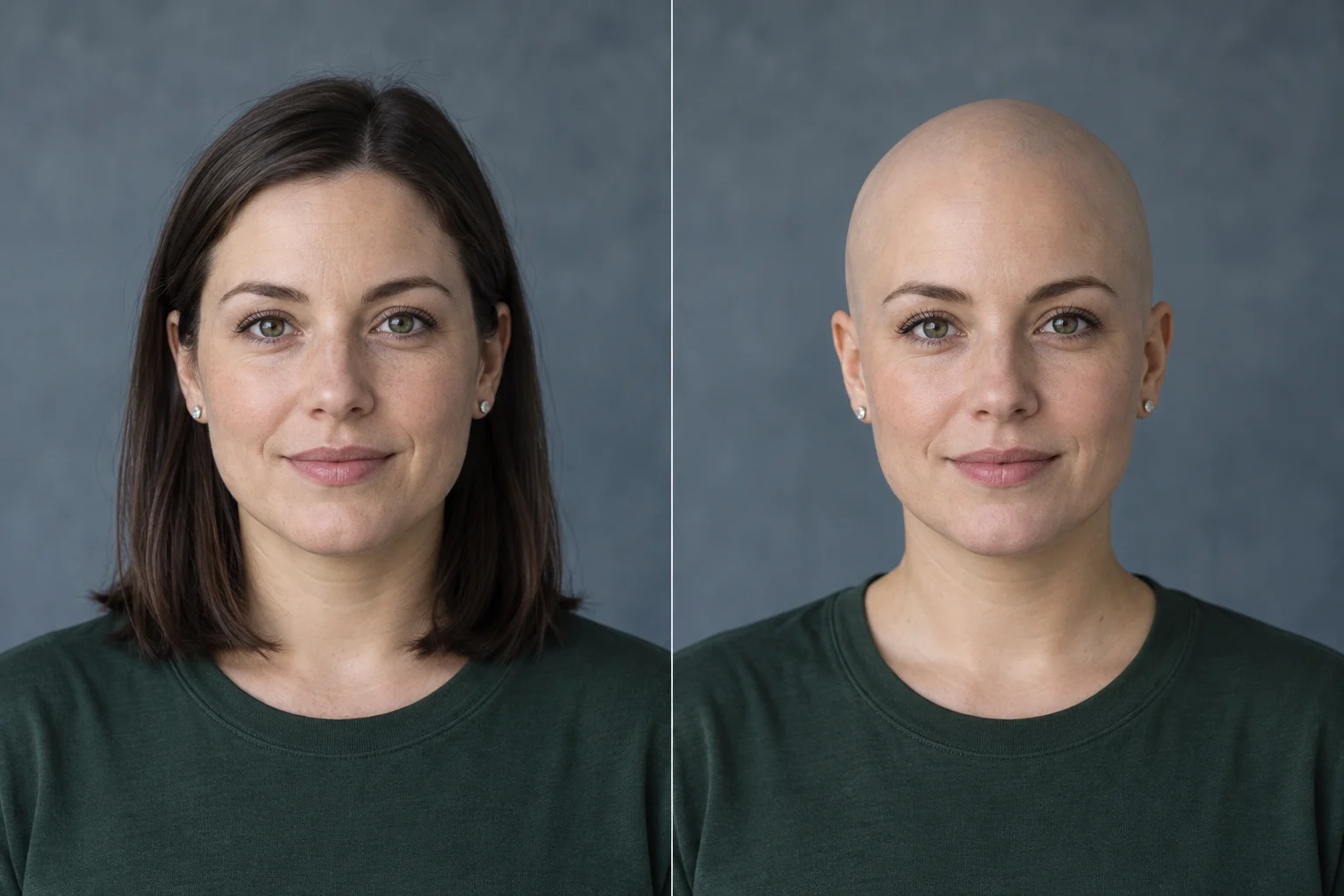
AI illustration: a woman with shoulder-length dark hair on the left and a bald-head concept with the same earrings and green shirt on the right
Original lookBald concept

Preview a bigger change from long hair

Long hair can cover the ears, neck and background. Ask for those areas to be filled in too, then inspect them before choosing the version you want to save.

Prompt idea

Remove all scalp hair, including the long strands beside the face and over the shoulders, for a completely bald look. Reconstruct the uncovered ears, neck, clothing and background naturally.

How to use the bald filter online

Start with one portrait. You can adjust the edit in words without drawing a mask around every strand.

  1. Step 1

    Upload a clear photo

    Choose a portrait with one person, an uncovered head and room above the hair. A front-facing photo in even light makes the comparison easier.

  2. Step 2

    Choose what to keep

    Use the bald-head prompt or select an example to replace a previous edit. Keep your beard, eyebrows and glasses in the instructions. Check the selected model and credit cost before generating.

  3. Step 3

    Compare, refine and download

    Inspect the scalp, face and edges against your source photo. If hair remains or a detail changes, revise the prompt or try a clearer input, then download your chosen image.

What would I look like bald?

A bald simulator helps you explore a look that is hard to picture from a haircut photo of someone else. Start with your own face, then decide which details matter to you.

The scalp hidden under your hair has to be generated. Treat the image as a style preview, not an exact prediction of your real head shape.

  • Before a first head shave

    Compare your current hairstyle with a fully shaved concept. Look at the head outline and how much more visible your ears and forehead become.

  • With your everyday look

    Use a photo with the beard or glasses you normally wear. Keeping these details makes the preview more useful than an unrelated makeover.

  • For a profile or reveal post

    Save your chosen edit alongside the original for a before-and-after post. Make it clear that the transformation is an AI edit when sharing it.

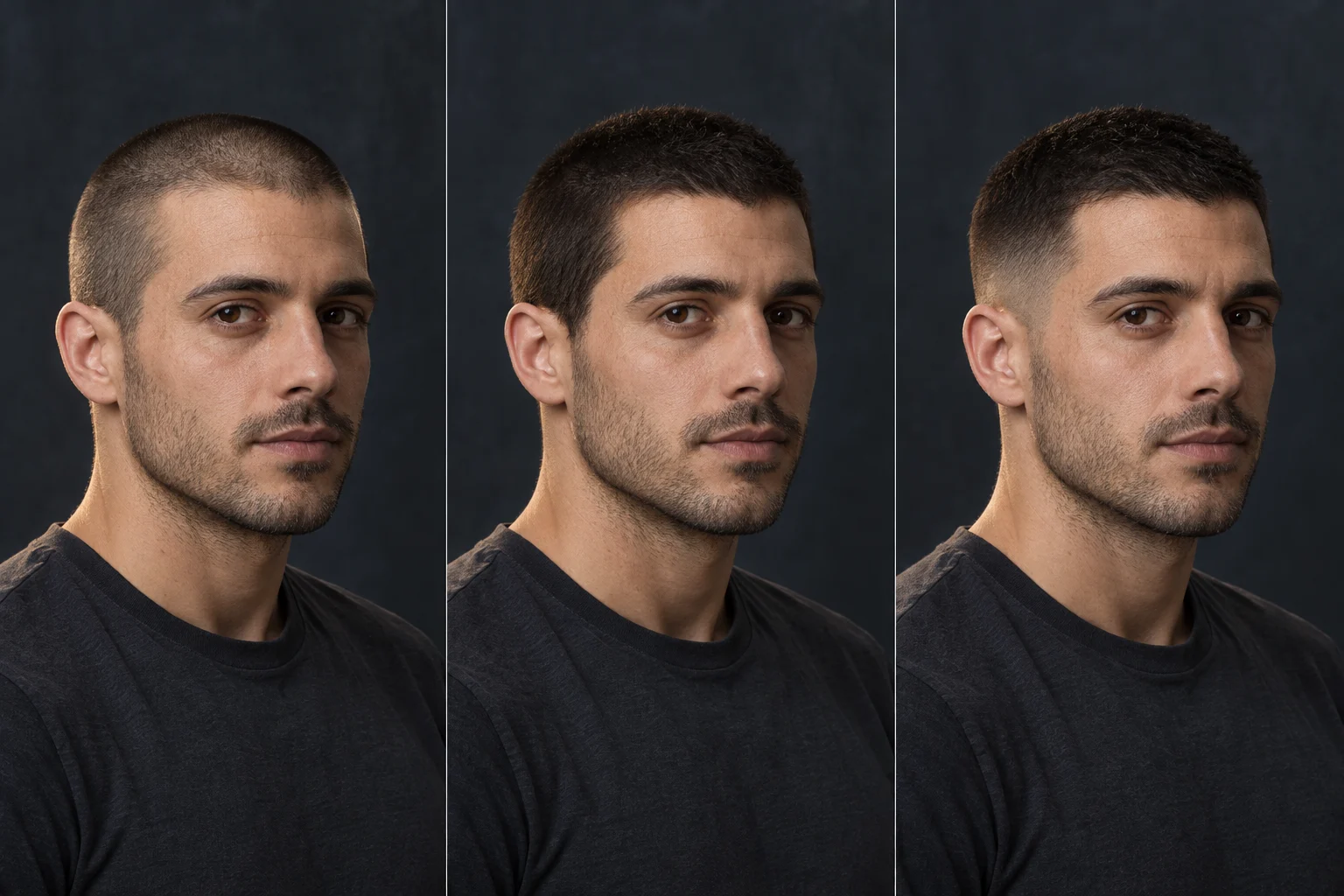
Bald head or buzz cut?

Both expose more of your face, but they leave very different amounts of hair.

Bald Filter

A fully shaved concept removes visible scalp hair and the hairline. Choose this when you want to explore a smooth scalp or a no-hair look.

Preview a Bald Head

Buzz Cut Filter

A buzz cut leaves a short layer of hair, including its color and texture. Choose it when you want a close crop with some coverage instead of a bare scalp.

Compare a Buzz Cut

For a useful comparison, upload the same original photo to both tools and keep the angle, expression and facial hair consistent.

Get a better shaved-head preview

Hair removal reveals areas the camera never captured. A better source photo and a focused instruction give the model less to guess.

Leave room above your head

A crop through the top of your hair leaves little space for the new scalp. Start with the whole head in frame and a simple background.

Avoid hats and heavy shadows

Hats, hoods and a strong shadow across the forehead hide the outline. Use an uncovered, evenly lit portrait so the scalp can match the face.

Name the hair you want to keep

Ask to preserve eyebrows, eyelashes and your existing beard. If the model removes facial hair too, make that instruction explicit on your next attempt.

Check the ears and shoulders

Removing long hair also reveals hidden background and clothing. Look for leftover strands, repeated texture or changed earrings before downloading.

Try a shorter cut, explore other hairstyles or refine the portrait you just made.

Bald Filter FAQ

Answers about free credits, photo preparation and what the preview can show.

Yes. Start with 40 free trial credits and try the image editor without signing up. Each generation uses credits based on the model and settings shown in the generator. You can claim additional free credits through daily check-in; this does not provide unlimited free generations.

Upload a clear portrait in image-edit mode and use the bald-head prompt. Ask to remove scalp hair while keeping your facial features and any beard or glasses. Generate the preview, compare it with the original and refine any areas that look different from what you intended.

The supplied prompts ask the model to keep them. This is an editing instruction, not a guarantee that every detail will stay identical. Check the eyebrow shape, beard edges, glasses and temples in the result. If they change, repeat the preservation request or use a clearer source photo.

Yes, you can use a portrait of any gender and request a bald look. Long hair can hide the ears, neck, shoulders and background, so those areas also have to be reconstructed. Choose a photo with the face unobstructed and mention any long strands that should be removed.

It creates an AI interpretation of the photo. It cannot see the scalp under your hair, so the head shape, skin texture and highlights may differ from a real shave. Use it to explore the overall look, and compare more than one clear photo before making a hairstyle decision.

Use a clear JPG, PNG or WebP portrait and check the selected model's upload hint. The shared uploader normally allows up to 10 MB per image, while some models have different limits. Output size and aspect ratio depend on the model and settings; the original resolution is not guaranteed.

Yes. This is a browser-based photo editor: open the page, upload a saved photo, generate and download. It does not apply a live camera effect or install a lens in Instagram, Snapchat or TikTok. You can share the saved image through the apps you use.

The model may interpret a shaved head as a very short haircut. Ask for a fully bald scalp with no visible hair, dark stubble or hairline. If strands remain near the ears or shoulders, name those areas in the prompt. A less cluttered photo can also make the edit easier.

No. This page is set up for a fully bald or clean-shaven look. A balding filter usually simulates a receding hairline or partial hair loss. This tool does not predict future hair loss or diagnose a scalp condition.
Lanta AI

Curious enough to try the look?

Start with a photo of yourself. Preview a bald head, compare it with your current look and save the version you like.